
Meeting calendar
Schedule, reschedule and join
Create a meeting
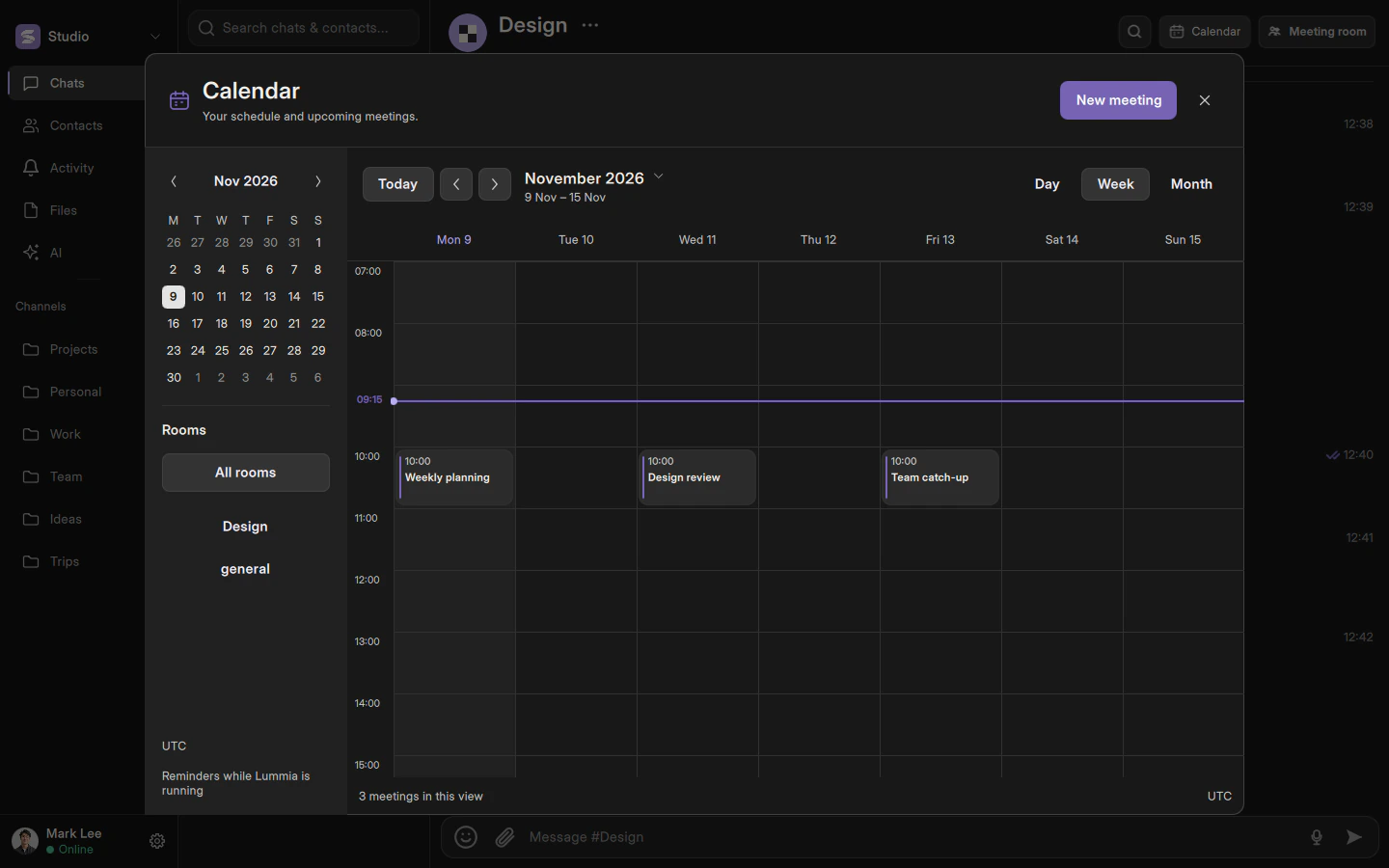
Open Calendar in the chat header. Switch between day, week and month, navigate with the mini calendar or return to Today. Click an empty cell once to create a meeting at that time.
Enter a title, room, date, start and end times, format and reminder. Use the time wheels or type the time directly. An external meeting link is optional; leave it empty to meet in a Lummia room.
Changes and overlaps
Members can create meetings. Only a meeting’s organizer can reschedule or cancel it. Overlapping cards are highlighted, and the current-time line helps you follow the schedule.
Reminders and time zones
Audible reminders work while Lummia is running. When the system time zone changes, the app offers to update the display time zone rather than moving the meeting itself. The conversation continues for others when the organizer leaves the room.
Describes the current implementation. Mobile availability and limitations are documented separately.